WAITS: Terminals and keyboards
To expand on what we saw in the quick tour, let's look further at how you can interact with WAITS using the simh emulator. There are two classes of terminals: teletypes and display terminals.
Teletypes
Teletypes here means the console typewriter (shown below, with John McCarthy helpfully holding the paper) and remote connections, which simh emulates as a telnet connection but on the real system could have come from phone dial up lines or over the Arpanet.
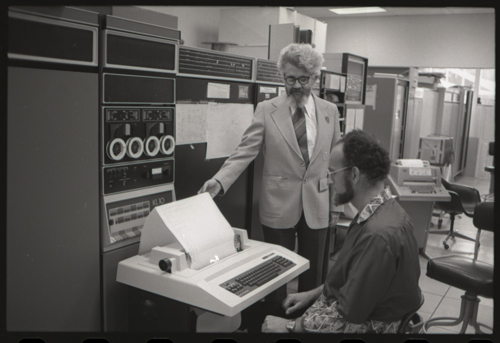 Using the console at SAIL. Source: CHM.
These devices support the backspace key, but do not delete
characters; instead they print a backslash, then the characters you
want deleted, then another backslash when you start typing again. So
if I entered ABCDEF but deleted the last three characters and
inserted XYZ it would look like:
ABCDEF\FED\XYZ
You can press Control-U to delete the whole line, but TOPS-10's Control-R to reprint the line is not supported.
Pressing Control-C will stop a job; pressing Control-O will keep a job running but suppress any further output.
The console
By default the console will print in upper case, but you can coerce it
to print lower case (in most programs) by typing TTY FULL.
The console was not intended for regular users and if you try to log
on as one (eg L 1,BGB) it will ask for a password:
.L 1,BGB
JOB 1    STANFORD 6.17/K 08-16-74
THE CTY IS FOR DEBUGGING ONLY,
UNLESS YOU KNOW THE PASSWORD =
Well, we own the system now, so the password to get around this is
FEEPER. This is a special password for the console, and if you have
a password for the account this would be prompted for next.
Remote access
simh allows remote access via telnet: if using the quickstart this is
on port 1974. However, users without a password (which is true for the
REG and BGB accounts we have used so far) are not allowed.
$ telnet 0 1974
Trying 0.0.0.0...
Connected to 0.
Escape character is '^]'.


Connected to the KA-10 simulator DCS device, line 0


TTY2    SYSTEM LOADED ON FRIDAY    26-JUL-74    18:10
^C
.l 1,reg
JOB 2    Stanford 6.17/K 08-16-74
Remote login prohibited for that account.
You must log in locally and set a password to allow remote logins.
KJOB
.
To set a password, use the console or display terminal to login as
your chosen account using % instead of . in the login command, eg
L 1%REG. It will prompt you for a password and whether to use this
on all logins, or just remote ones.
If you try to login as an unknown user over a remote connection, you get
politely redirected to use the NET,GUE guest account
.l 1,foo
JOB 2    Stanford 6.17/K 08-16-74
We prefer that our ARPA NET guests login as "NET,GUE".
Type "Y" to be logged in as "NET,GUE"; anything else to proceed: y
What is your name, please? A tourist
Friday  26-JUL-74       1822
3 jobs logged in. 1 Running.
.
The guest account has no disk directory and cannot run all programs.
Note that the remote access communication speed is quite slow, and I have seen it hang for 10-20 seconds sometimes.
Display terminals
Most users in the lab would have access to a display terminal, which was very unusual for the early 1970s. There were 6 III (Triple-I) vector displays and 58 DD (Data Disc) raster displays in 1973 (not all DDs could be used at the same time, however). simh has good support for the III which we'll go into details below.
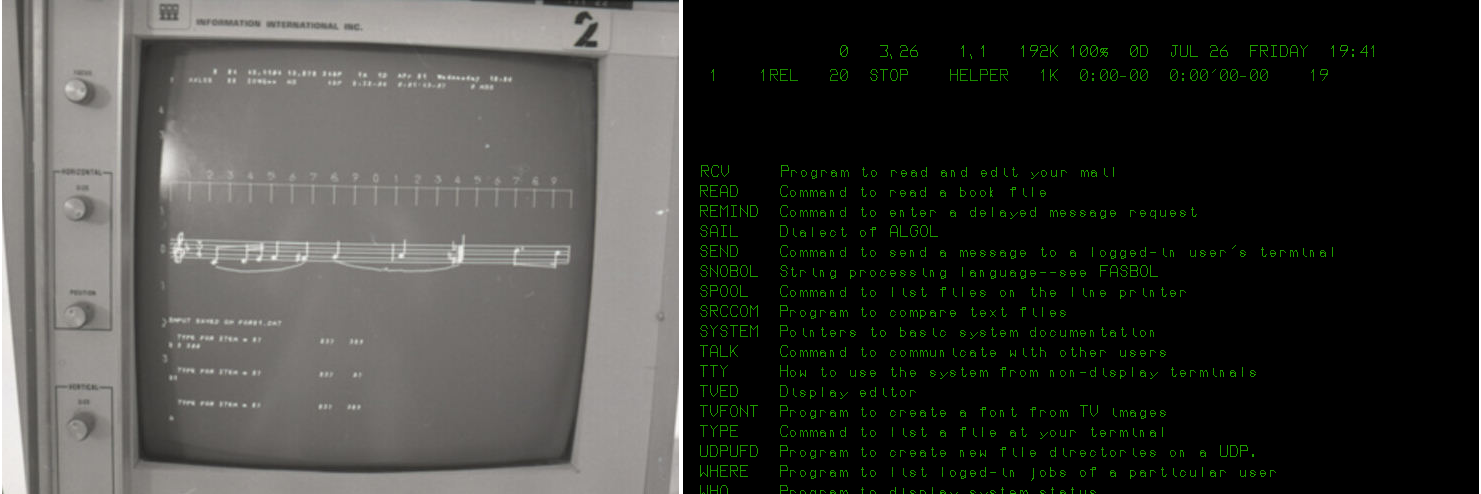 Left: An III display in use at SAIL running an unknown music program.
Source: CHM. Right: a simulated III display on simh.
Left: An III display in use at SAIL running an unknown music program.
Source: CHM. Right: a simulated III display on simh.
Display terminal keyboards
Display terminals used a special keyboard, the layout of which is recreated below.
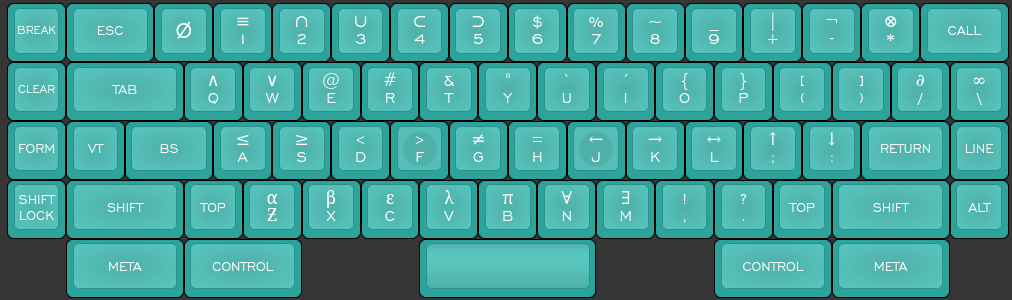 Stanford keyboard layout. Source: keyboard-layout-editor.com
There are a number of modifiers that can be combined with other keys:
Shift, Control, Meta and Top. On simh, Meta is mapped to the Alt or
Option key. Top is used to select the symbol on the top of most letter
and number keys, such as > on the F key. This is mapped to the
Windows/Command key on your keyboard (which may be hard to use as some
window managers grab these). On your modern keyboard you will have
many of these available directly, so for > you can press Shift and
dot as normal.
There are also special keys at the side like BREAK and CALL which are used to control the line editor; simh uses the function keys for these. These are not modifiers, ie to type the sequence BREAK e you'd press F3, let go and type E.
The ALT key (also known as ALTMODE) is not a modifier but another special key, and is accessed by pressing Escape on your modern keyboard. The ESC key is another function key not related to the modern Escape key.
Here's a summary of how all these keys are mapped to a modern keyboard when using simh.
| Stanford key | Modern key |
|---|---|
| META | Alt/Option |
| TOP | Windows/Command |
| CALL | F1 |
| ESC | F2 |
| BREAK | F3 |
| LINE | F4 |
| FORM | F5 |
| VT | F6 |
| ALT | Escape |
There does not seem to be a simh mapping for CLEAR, however
The cursor keys will emit the arrow characters like ←.
Not a Stanford key, but a facility provided by simh: pressing F11 will make the window full screen.
The saildart javascript emulator does not use the above keyboard mappings, but does provide a layout with a virtual keyboard you can click keys on.
The line editor
Similar to the facility you are used to in modern shells like bash, the display terminals supported a powerful line editor to help you quickly edit text, using the Control and Meta keys. This works on all text input fields, not just the monitor command line.
If you log on to the III you will see there are two cursors, one at the start of the text field you are typing into, and one at the end. You can move back and forward on the line with Control-Backspace and Control-Space respectively. If you are not at the end of the line, typing a character will replace what's currently behind the second cursor. Typing Meta and a character will insert a character. So typing X with the cursors as shown below would change 'world' to 'xorld'.
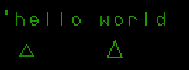 The two cursors. Source: Rupert Lane. License: CC0.
Meta-Backspace will delete the character behind the cursor. Control-D deletes the character in front of the cursor.
Plain Backspace at the end of the line deletes the last character, but if the cursor is not at the end it will act the same as Control-Backspace, ie move the cursor left.
A summary including the other line editing commands. C- means Control. M- means Meta.
| C-Space | Forwards one character |
| C-Backspace | Back one character |
| M-ch | Insert character ch |
| M-Backspace | Delete char to the left |
| C-d | Delete char to the right |
| C-Return | Recall last command typed |
| C-Tab | Move to end of line |
| C-FORM (F5) | Move to start of line |
| C-S | Search forwards for the next char you type |
| C-K | As above, but search backwards |
| C-R | Repeats the last Control-S or -K search |
| C-I | Toggle insert mode |
Finally, you can repeat a command n times by typing Control and the number n, then typing the command.
Controlling the screen
Often commands with lots of output will cause the screen to scroll. To
pause the output, press Control-BREAK (ie Control-F3). HOLDING will
appear at the top of the screen. Press an editing key like Control-Tab
to resume.
You can also make it pause automatically after every n lines by typing ESC n E, ie to pause after every 20 lines press the keys F2 2 0 E. The important thing here is that you must enter this command while a program is running, and it only has effect for the life of that program, ie you can't set it once at the monitor level and have it apply to all programs.
In summary:
| Control-BREAK | Pause output; press Control-Tab to resume |
| ESC n E | Pause display after n lines |
| ESC E | Turn off pause display |
To control the WHO line at the top of the screen:
| ESC W | Display a who line at the top of the screen |
| BREAK W | Turn off the who line |
| ESC Q | Display your next job in the who line |
There are also other controls to adjust the position and pane of glass behaviour which I have not yet found much use for - see section 2 of the Monitor Command Manual, linked below for details.
The Data Disc terminal
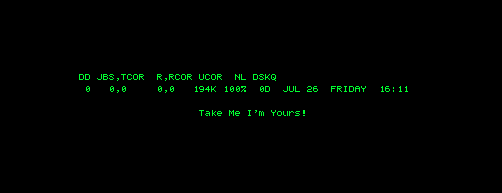 The Data Disc display on simh. Source: Rupert Lane. License: CC0.
The Data DIsc terminal was the more common of the two terminal types at SAIL. It used a modified TV set to display pixel graphics and text; the name came from the controller which used tracks on a hard disk to store pixel data to be sent to the screen. It also had a video switch so you could select video from TV cameras used in lab experiments and even broadcast TV signals. There's a footmote in the Monitor manual that says:
The first edition said, at this point, "Thus, BREAK S at 6pm on a weekday selects Star Trek." However, I understand that we are being spared that this season.
This terminal is not supported on the saildart emulator yet. On simh,
it is emulated but has several problems with scrolling (see this issue
for details). You can try this out by changing set dd disable to
set dd enable in the run.ini file in the quickstart and restarting
the emulator.
Further information
You can find out more about the SAIL keyboard, along with pictures, at Xah Lee's site and in an issue created by Lars Brinkhoff on the Github PDP-10 organisation.
This 1975 video shows the Stanford DD display terminals in action.
The Monitor Command Manual section 2 describes the display terminal in more depth.
Questions, corrections, comments
June 2026: Corrected numbers and availability of display terminals, from a comment by Lars Brinkhoff.
I welcome any questions or comments, and also especially any corrections if I have got something wrong. Please email me at rupert@timereshared.com and I will add it here and update the main text.