WAITS: A quick tour using simh
In this post I will show how to get the 1974 snapshot of WAITS running using the simh emulator. We'll use the command line on the console, run a AI program from 50 years ago, write a short program and use the display terminal for some vector graphics.
 Running WAITS on simh. Source: Rupert Lane. License: CC0.
The quick start repo
I have put together a repo on Github that uses Richard Cornwell's KA PDP-10 simh emulator along with a ready-to-use disk image of WAITS from Lars Brinkhoff's sailing-on-arpanet project. This builds on the simh disk images from Richard Cornwell and ultimately Bruce Guenther Baumgart's saildart archive.
To use this, you will need a Unix-like environment capable of running a shell, git, make, a C compiler, bunziip2 and the SDL library. An optional requirement is a telnet client. See the README for more details.
First, clone the repo and cd into it
git clone https://github.com/timereshared/stanford-waits-simh-quickstart.git
cd stanford-waits-simh-quickstart
Then type ./build.sh. This will
- Download opensimh using git and compile the pdp10-ka emulator binary.
- Download a copy of the WAITS disk images.
- Apply some missing system files.
Start WAITS
Type ./run.sh. An III display terminal window will pop up, and the
system will boot, showing the below on the main console window.
Stanford 6.17/K 08-16-74

CTY	SYSTEM LOADED ON (date, time)
Using the WAITS CLI
The main window now acts as the PDP-10 console. You can log into it
using the LOGIN command which can be abbreviated as L. As this is
a snapshot of a live system, it has several accounts set up already.
Let's use REG, which was the account of Ralph Gorin, a system
programmer at SAIL. By defailt, no password is needed so just type L
1, REG
L 1,REG
JOB 1    STANFORD 6.17/K 08-16-74
FRIDAY  26-JUL-74       1105


EXIT
^C
.
It prints EXIT and ^C to show the login job has finished, then
prompts you to enter commands with a dot.
Type TTY FULL to let it use upper and lower case letters (the
console would normally only print capitals).
If you have tried TOPS-10 the interface will look familiar, and indeed
most of the commands work the same way. Type DIR to get a directory
listing; you can use wildcards to limit the search, so to find all
SAIL programs:
.dir *.sai

26-JUL-74  1132
FILNAM  EXT   SIZE LAST WRITTEN

   [1,REG]
FORTUN  SAI    256  30-MAY-72
        TOTAL=   256


EXIT
^C
You can view the contents of files by using the TYPE command, so to
see the above you'd enter TYPE FORTUN.SAI
The help system is invoked by typing HELP; to see a summary of
commands type HELP HELPER.
.help helper
ALIAS   Command to change default directory used for disk files
ARPA    Basic information for users from other ARPA network sites
ASSIGN  Command to acquire use of non-sharable device
ATTACH  Command to attach terminal to a detached job
BINCOM  Program to compare binary files
...
Running programs
As a snapshot of a running system rather than a freshly installed but
blank operating systen, there are several commands available to run
that were created by the researchers at the AI Lab. One example is
PARRY, which was an attemp by psychiatrist Kenneth Colby to simulate a
person with paranoid schizophrenia. You can invoke this with the R
command. It asks you some questions to set up the parameters for the
interaction than lets you start talking to Parry. Press Control-C to
exit.
.r parry

END INPUT PARAMETERS WITH CARRIAGE RETURN OR ALTMODE

PRINT NON VERBAL FEATURE? [Y,N]
*y
[...]
END INPUT WITH A PERIOD OR QUESTION MARK,
   FOLLOWED BY CARRIAGE RETURN.
TO INDICATE SILENCE, TYPE   .
   WHEN FINISHED, TYPE   BYE.
USE PERIODS ONLY AT THE ENDS OF SENTENCES,
   NOT IN ABBREVIATIONS.

READY:
*why is the sky blue?

THAT'S THE WAY IT GOES

READY:
*tell me about your past.

I'M QUITE UPSET

READY:
*why are you upset?

PEOPLE GET ON MY NERVES SOMETIMES

READY:
*^C
^C
Creating a simple program
Let's create a simple hello world program using Fortran. We will use the SOS editor to create the source file then compile it and run it.
Type CREATE HWORLD.F4 to create a new file and put us in the
editor. As this is a new file, the editor will allow you enter text
immediately. It will precede each line with a line number (which is not
a Fortran label) automatically. So the screen will look something
like this after you run CREATE
.create hworld.f4
00100
Type the following program. Where you see ⭾ below you should press
the Tab key rather than typing spaces.
⭾	DO 1 J=1,5
1 ⭾	WRITE(5, 2)
2 ⭾	FORMAT(' HELLO, WORLD')
⭾	END
Type Alt-mode (which is Esc on your keyboard) to exit input mode, and
then type e at the * prompt to save and exit. Finally type exec
hworld.f4 to compile and run the program. Your screen will look
something like the below.
.create hworld.f4

00100           DO 1 J=1,5
00200   1       WRITE(5, 2)
00300   2       FORMAT(' HELLO, WORLD')
00400           END
00500   $
*e

EXIT
^C
.exec hworld.f4

FORTRAN:  HWORLD.F4
LOADING

LOADER 5K CORE
EXECUTION

HELLO, WORLD
HELLO, WORLD
HELLO, WORLD
HELLO, WORLD
HELLO, WORLD
EXIT
^C
.
The program is still in core memory at this point, so if you want to
save a permanent copy to disk use the SAVE command
.save hworld
JOB SAVED IN 4K

^C
If you now use DIR you can see the files you created.
.dir hworld.*

26-JUL-74  1122
FILNAM  EXT   SIZE LAST WRITTEN

   [1,REG]
HWORLD  F4      19  26-JUL-74
HWORLD  DMP    3.5  26-JUL-74
HWORLD  REL     57  26-JUL-74
        TOTAL=   3.6

EXIT
^C
The .rel file is the object code and the .dmp the executable,
which you can run again by typing RUN HWORLD (RUN rather than R
as R is for system programs)
Using the display terminal
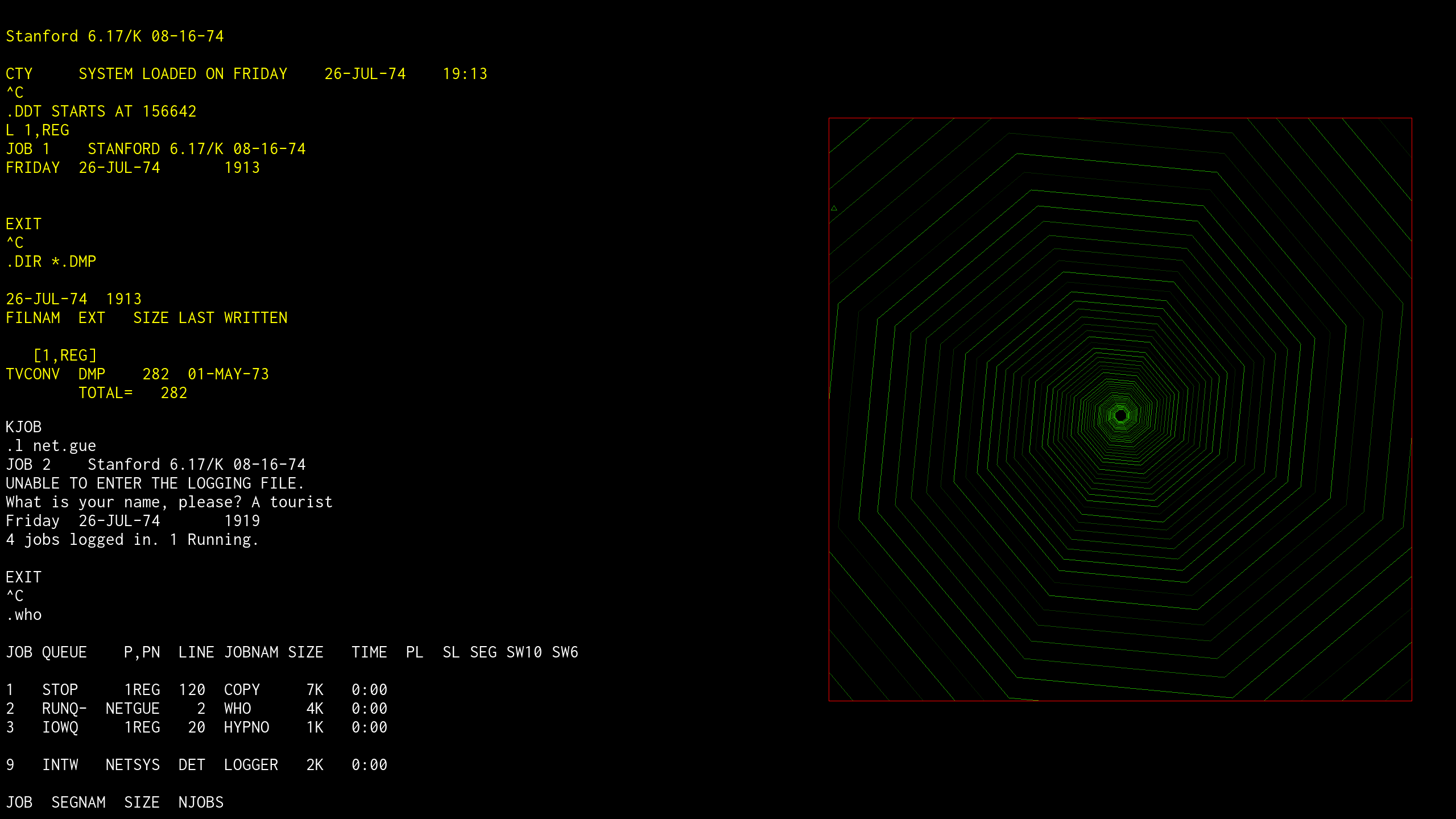
So far we've done everything using the console, but you probably noticed the III display terminal that appeared when simh started with its welcoming prompt.
 Prompt on WAITS display terminals. Source: Rupert Lane. License: CC0.
All the login and command line programs we have used so far will work on this terminal as well. But this is a vector terminal that can draw text and graphics, along with a keyboard that can enter more characters than the traditional teletype.
Let's login this time as BGB, the main archivist of the saildart.org
site. Type L 1,BGB and then try a few commands. You will note that
pressing Delete will delete the last character rather than reprinting
it as it does on the teletype; in fact there is an extensive command
line editor which we will look at in a later post. A warning: the
system does not handle type-ahead that well, so it's best to type
slowly.
The video display can show more than just the interaction with the
monitor command line. Press F2 then W and a dynamic display of system
usage will appear at the top of the screen - called the WHO line.
Press F3 and then W to turn it off. A more extensive set of system
information cab be displayed in the main area by typing WHO; press
any key to exit.
Next, type COPY MON ← MONCOM.BH[S,DOC]: you can get the left arrow
by pressing your left cursor keu. And then type TV MON.
This will open up the TV editor on a copy of the monitor command manual. Type Control-P to advance by page and Control-minus then Control-P to go back. Press Control-Alt-E to exit back to the prompt.
 Running the TV editor. Source: Rupert Lane. License: CC0.
There are also a number of graphical demos. Try running each of these
with R, eg R DAZZLE
- armdpy
- dazzle
- hypno
- petal
- repent
When done with each, press F1 twice and type CORE 0 to clear the
screen.
 Display hacks running on the III. Source: Rupert Lane. License: CC0.
Maybe finish with a game? Two which have graphical versions for the III
are Go (R IIIGO) and AI Monopoly (R MONPLY).
 Two games on the III. Source: Rupert Lane. License: CC0.
Logging off and shutting down the system
Type K, short for KJOB on any logged in terminal to log off. Or
get a more personalised signoff by typing K/ME.
There is no procedure to shut down the operating system. Just
switch over to the main simh window, press Control-E and type q.
You can restart the operating system with ./run.sh as needed.
Further information
Read the Monitor Command Manual on saildart.org for more information on WAITS commands (this was the document we saw in the TV edit session above).
See PARRY Parries Again for a recreation of a dialogue between ELIZA and PARRY.
Questions, corrections, comments
June 2026: Corrected program compilation example to use e to exit
SOSt and then to type the exec monitor command, rather than the g
command in SOS, as g will not work until you have done the first
compile/exec command.
I welcome any questions or comments, and also especially any corrections if I have got something wrong. Please email me at rupert@timereshared.com and I will add it here and update the main text.