WAITS: Jobs, users and security
Today we'll look at how users and security are handled on WAITS - this is fairly relaxed, allowing free access to resources for people inside the lab, but with protection available if needed. Remote users are more restricted. We also look at jobs, which are similar to processes on modern systems.
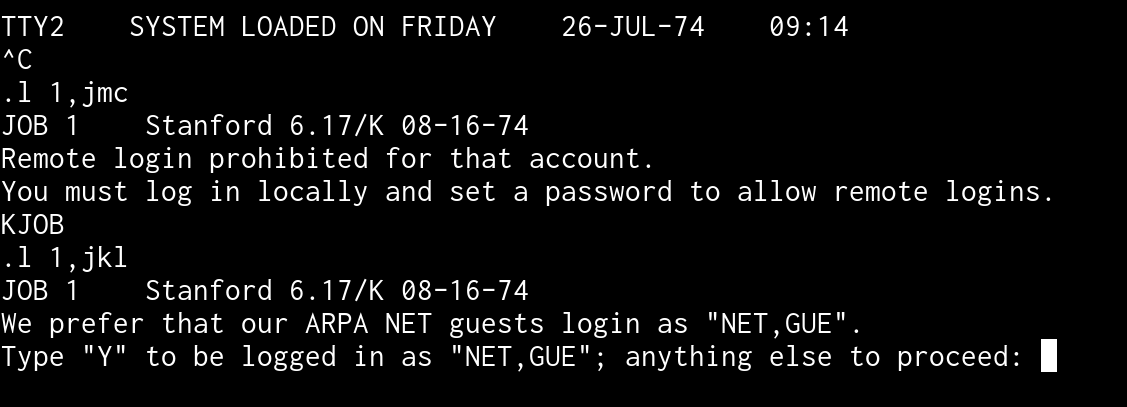 Remote logins to WAITS. You can't log in as an existing user (like JMC) if no password has been set. Trying to create a new
user, like JKL, will not work if done remotely. Source: Rupert Lane. License: CC0.
Remote logins to WAITS. You can't log in as an existing user (like JMC) if no password has been set. Trying to create a new
user, like JKL, will not work if done remotely. Source: Rupert Lane. License: CC0.
Security and users
In the previous post we talked about PPNs like [1,REG]; here REG
is the ID that identifies which user you are.
To create a new user ID, simply choose a 3 letter ID and log in as that. This must be on a device internal to SAIL, ie the console or display terminal, not via the external communication lines that are modelled by a telnet connection on simh.
Here I choose REL as an ID and log on. It asks me if I am sure, as
this is a new ID, and if I type Y I am logged in and can run programs
or create files.
.l 1,rel
JOB 1    Stanford 6.17/K 08-16-74
Are you sure? y
Friday  26-JUL-74       0945
.
If I log out with an empty directory, it will be removed.
.k
Your empty file directory has been deleted.
But it is recreated the next time I log in.
If you had logged in as 1, FOO, you would get this message when you
logged out:
You are not an authorized user. Your files have been deleted.
This turns out to be a simple check in the LOGOUT routine - if your
user ID is one of FOO, BAR, BAZ, ABC, 100 it will say you are
unauthorised, probably because these are common IDs used for testing.
You will note that no password was asked for at any stage. You can set
a password by replacing the . with a % at the login stage, eg L
1%REL. You get the option to only ask for a password if you are
logging in remotely so you don't need to supply it when logging in via
the console or display terminals.
The password is set at the PPN level on the user file directory entry,
so you could have a different password for say 1,REL and 2,REL.
According to the UUO (system calls) manual it is stored in plain text,
case insensitive with a maximum length of 6 characters.
File protection
Files and directories have a 3 octal digit protection code.
| Bit | File | Directory |
| 400 | Don't backup this file | Ask for password for remote logins only |
| 200 | Delete protect | Unused |
| 100 | Owner may not overwrite this file | Owner may not write files |
| 040 | Local users may not change protection of this file | Same as for files |
| 020 | Local users may not read this file | Same as for files |
| 010 | Local users may not overwrite this file | Same as for files |
| 004 | Guest users may not change protection of this file | Same as for files |
| 002 | Guest users may not read this file | Same as for files |
| 001 | Guest users may not overwrite this file | Same as for files |
The default protection is 000, so anyone can do anything.
To set protection on files, you need to use COPY with the
/PROTECTION flag to create a new file with the desired level, eg
.copy /protection=006 foo2 ← foo1
would create FOO2 from FOO1 but set protection so guest users
can't access it at all.
Directory protections can only be set by logging in with the % delimiter
Jobs
WAITS is quite similar to TOPS-10 here so reading the Jobs on TOPS-10 post will give more details. But in brief:
When you log in to WAITS, it gives you a job number which lasts
throughout your session. Some simple commands (like DAYTIME) you
type are built into the monitor. Others need to be loaded into memory
from core files, which have the extension .DMP on WAITS.
If you have a core file FOO.DMP in your directory you can invoke it
with RUN FOO. Common programs are stored in the SYS: area, which
is equivalent to [1,2], and programs here can be run using R.
RUN can also take a file name and directory, so R LISP is the
same as RUN LISP.DMP[1,2].
Some common programs, like COPY, are recognised by the monitor but
behind the scenes it will invoke RUN on the right core file.
You can create another job by logging in a second terminal. But you
can also DETACH from a job, which will suspend it and log you out,
and then log in elsewhere and resume execution using ATTACH. Jobs
can also run in the background if they do not need interact with the
user's console.
All that is pretty much the same as TOPS-10. WAITS adds some more
conveniences. FORK works like DETACH, but rather than logging you
out will create a new job as your current ID. KILL can be used to
kill a job owned by you.
WAITS replaces TOPS-10's SYSTAT with WHO, along with the "who
line" we saw earlier on interactive terminals.
Batch jobs
TOPS-10 had a fairly sophisticated batch processing system, where jobs could be submitted from the terminal or via cards, and queues of jobs could be maintained and run in the background.
WAITS chose instead for a simple facility to run from the terminal,
similar to a shell script file on a modern system. The concept is you
create a file with a set of commands or data to input to those
commands. The end of each line must be denoted by a ↔ rather then
Return. There are a number of other metacharacters to allow you to
enter the special keys on the Stanford keyboard, eg ≠ will emit an
Altmode key
You run the file with DO and it basically pastes data it into your
keyboard buffer as if you'd typed it directly, expanding any
metachracters.
There is provision for variables via the question mark and a single
letter, eg ?A. The first time this is seen it will prompt for input
and store that in variable A; from then on using ?A will expand it
to the value you entered.
There is no looping or branching available, however.
As an example, if you have the file foo.do:
hello↔dir [?D,DOC]↔
and type DO FOO.DO it will run the hello command, prompt you for a
value for D then do a directory listing of that area under DOC.
More information
See the Monitor Command Manual for more details on these topics.
Questions, corrections, comments
I welcome any questions or comments, and also especially any corrections if I have got something wrong. Please email me at rupert@timereshared.com and I will add it here and update the main text.