WAITS: Files and directories
Today we'll look at how WAITS handles files, the commands to manipulate them, and how the WAITS PPN / directory structure works.
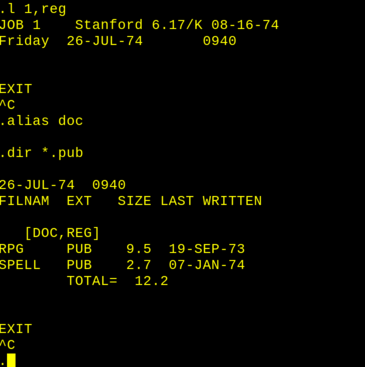 Logging in and changing directory. Source: Rupert Lane. License: CC0.
Files
Files are named file.ext where file is 1-6 characters long and
ext 0-3. The extension is used to identify the type of file, eg
HELLO.SAI would be a source code file in SAIL, the lab's version of
Algol. One exception is seen in some shared directories, where the
file extension is the initials of the person maintaining the file.
Filenames are case insensitive, and each character is stored using 6
bits instead of the usual 7 bit Stanford ASCII. This means that the
special characters in Stanford ASCII like ← or α cannot be used in
file names.
The PPN and directories
PPN means project and programmer number. These are both 1-3 alphanumeric characters long, with the programmer number (eg REG) identifying the person and the project number (eg 1) indicating a particular set of work. Programmer numbers can also be shared areas, eg DOC.
This information is given when you log in (eg typing L 1, REG) and
also represents an area of the disk, for which is written in square
brackets, (eg [1, REG]). By convention, [1, xxx] is like the home
directory of user xxx, but the number 1 itself has no special
meaning. Users would generally have different project numbers for
different tasks, eg REG has [CRF, REG] for working on the CREF
program and [DOC, REG] for documentation tasks.
To change directories, eg from [1, REG] to [DOC, REG] you could
log out and log back in again with K and then L DOC,REG. But an
easier way is to use ALIAS. With one argument this will change your
project number, so ALIAS DOC will put you in [DOC, REG], as seen
in the screenshot above. When invoked with two comma-separated
arguments it will change to that PPN, eg ALIAS 1,BGB. With no
arguments it will return to the directory you logged in as.
Typing R ALIAS will show what your current alias is, and what you
logged in as.
To create a new directory, you need to log in with that PPN, so to
create [FOO, REG] log out with K then log in with L FOO,REG. It
will ask you for confirmation and then create an empty directory which
you can start adding files to.
When you log out, if your logged in directory has zero files, it will be deleted.
Alphanumeric PPNs are a change from TOPS-10, which only allowed octal numbers. Unlike TOPS-10, there is no concept of sub-directories on WAITS.
File manipulation
There are several commands to manipulate files which share a common code base.
| Command | Function |
| COPY | Copy files |
| RENAME | Renames files |
| TYPE | Display file on the TTY |
| LIST | Send file to the line printer |
| DIR | Do a directory listing |
In general the arguments for these commands takes the form
destination ← source. On display terminals you can get the left
arrow by pressing the left cursor key; on TTYs, you can use underscore
instead.
So COPY bar ← foo would copy foo, creating bar, and RENAME bar
← foo would change the filename foo to be bar.
Each file argument can be fully specified as
dev:file.ext[prj,prg]
dev is by default DSK: and does not need to be specified unless
you are working with magnetic tape devices. prj,prg by default is
the PPN you are currently logged in or aliased to.
The * wildcard means match all for the field it is specified in, eg
*.txt. There is no partial wildcarding like a*.txt.
Some examples:
RENAME *.BAK ← *.TXT
renames all text files in your current PPN to have an extension BAK.
COPY X ← A,B,C
concatenates a, b and c to form x
DIR MYLIST ← *.TXT
lists all files in the current PPN matching *.TXT and writes output
to the file MYLIST.
There's also a working copy of PIP, DEC's Peripheral Interchange
Program, on disk which you can run with R PIP. See my article in the
TOPS-10 series of posts for more details.
Directory structure
The root of all directories is [1,1], also called the Master File
Directory. If you do a DIR on this you can see each sub-directory as
a file containing the PPN and the extension UFD, for User File
Directory.
. dir [1,1]
...
  1REG  UFD    388  26-JUL-74
...
DOCREG  UFD    116  01-JAN-64
...
Some notable areas on the file system. As well as browsing these in WAITS, you can also look at the saildart archive by prepending https://www.saildart.org/ and either the PPN in brackets or the programmer number on its own, eg https://www.saildart.org/[S,DOC] or https://www.saildart.org/DOC .
| Area | Usage |
[1,3] |
Common programs |
[2,2] |
Mail and plan files |
[3,2] |
Help files accessed the via HELP command |
[*,DOC] |
Documentation |
[AIM,DOC] |
AI Memos |
[CSP,DOC] |
Docs on user programs |
[H,DOC] |
Hardware docs |
[P,DOC] |
Docs about people |
[S,DOC] |
Documentation of system programs |
[UP,DOC] |
Update docs on system programs |
[*,LSP] |
Files relating to Lisp |
[*,SYS] |
Data files for system programs |
Further information
The file manipulation commands are documented in COPY.RPH[S,DOC] in
WAITS, or at saildart.org here.
We'll look at file protection, and user setup, in the next post.
Questions, corrections, comments
I welcome any questions or comments, and also especially any corrections if I have got something wrong. Please email me at rupert@timereshared.com and I will add it here and update the main text.