WAITS: Getting data in and out
If you were working at SAIL in the 1970s and wanted to get data into or out of the system there were several options. Print outs could be made to the line printer or the new XGP laser printer. Data could be exchanged with other sites and computers via magnetic tape (open reel and DECtape) and paper tape. The Arpanet, predecessor of the Internet, was just starting and you could exchange data via ftp with those few sites that were connected. There was one medium not available, however: from the Monitor manual:
Our computer doesn't even have punched card equipment.
On an emulated system running today it's still useful to transfer files between your PC and the WAITS environment. Let's look at some ways to do this.
Download from saildart.org
If you are looking to download files from the existing disk image, for
example the manual for the COPY command in COPY.RPH[S,DOC], the
easiest way is to get these from saildart.org. Simply prepend
https://www.saildart.org/ to the file you want to get and open it in
a browser or download via wget or curl. Note that the file you get
is in HTML, so characters like < will be encoded as <.
If the file you want to get is a binary file rather than a text file, saildart will automatically output it in octal format. Each line of the file will be a 36-bit word encoded as octal digits.
To force a text file to be encoded as binary, add _octal to the end
of the URL, eg https://www.saildart.org/COPY.RPH[S,DOC]_octal.
The file you get will be the most recent version in the DART archive.
Sometimes you want an earlier version, eg to ensure you are viewing a
manual from 1974. To check this, open the directory listing for the
file you want, eg https://www.saildart.org/[S,DOC]. Here you can see
there are several different versions, from 1972 to 1976:
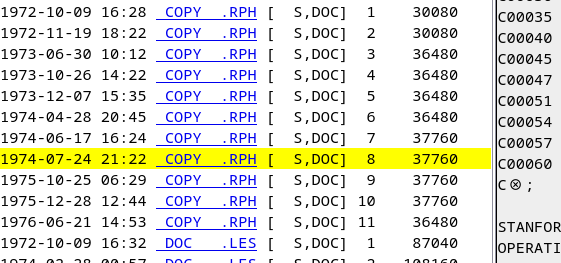 File detector on saildart.org. Source: Rupert Lane. License: CC0.
Note the version number after the directory name, so here I've
selected version 8 which is dated 1974-07-24. To get this file
directly you would go to https://www.saildart.org/COPY.RPH[S,DOC]8.
There is one quirk - for the latest version of the file you should not
provide the version number, so if you wanted version 11 from 1976 you
should request https://www.saildart.org/COPY.RPH[S,DOC]. If you try
to fetch https://www.saildart.org/COPY.RPH[S,DOC]11 it will fail.
Printing
Using the virtual line printer is a good way to get text files - either system files or your own files - out of the system.
First you need to attach a text file to the virtual printer so you can
view the output on your PC. For the quckstart this is done for you
already and the file used will be printer.txt. Otherwise you will
need to press Control-E in the simh window and enter commands:
sim> at lpt -n printer.txt
%SIM-INFO: LPT: creating new file: printer.txt
sim> cont
The -n switch creates a new printer text file each time simh starts.
If you want to keep previous output and append to the file, change
this to -a.
Then in WAITS, use the LIST command to send files to the printer, eg
.list hworld.f4
This takes wildcards like other COPY-class commands.
If you then look at your printer file on your PC you will see the file (it may take several seconds) with a header like this:
26-JUL-74 0955 HWORLD.F4 1,REL PAGE 1-1
LIST sends files directly to the printer. On the real system you
would normally use the spooler by typing PRINT instead, but this is
not running on the emulated system.
Extracting files to your PC via virtual tape
If you want to extract several files from WAITS, here is a method using emulated tapes and the WAITS DART program - the same program that produced the backup tapes on saildart.org.
You will first need to get the dart utility from Lars Brinkhoff's set of
PDP-10 tools:
$ git clone https://github.com/larsbrinkhoff/pdp10-its-disassembler/
$ cd pdp10-its-disassembler/
$ make dart
Copy the dart executable file to somewhere on your PATH.
Next, on the simh console, we will create a blank tape file on your PC
backup.tap and attach it to the emulated tape drive MTA0.
Press Control-E to enter simh command mode and then type the
following. Note that MTC0 on simh maps to MTA0 on WAITS.
sim> at mtc0 backup.tap
%SIM-INFO: MTC0: creating new file
%SIM-INFO: MTC0: Tape Image 'backup.tap' scanned as SIMH format
sim> cont
Switch to your WAITS login and run R DART, then at the * prompt type
dump and the files you want to save. Type exit when done.
.r dart

*dump *.f4
HWORLD F4      1,REL
SECOND F4      1,REL
*exit

EXIT
^C
.
On your host PC, use the dart command you compiled earlier with the
-tf option to view what's on the tape.
$ dart -tf backup.tap

DART VERSION 5  TAPE HEADER
RECORDED 1974-07-26 10:10,  BY [  1,REL] USER CLASS
   DSK:    HWORLD.F4 [  1,REL]        256   1974-07-26 19:02
   DSK:    SECOND.F4 [  1,REL]          3   1974-07-26 19:52
END OF TAPE (NO TRAILER)
Use the -xf option to extract files. It will create directories in
reverse order to store the files, ie HWORLD.F4[1,REL] will go to
rel/1/hworld.f4.
$ dart -xf backup.tap
$ ls rel/1/
hworld.f4  second.f4
Uploading files
To upload files from your PC to WAITS, we can use the same technique
bur in reverse. First, use dart with the -cf option to create a
upload tape file. Here we create the tape upload.tap containing two
Lisp files one.lsp and two.lsp intended for [1,REL] by placing
them in the reverse directory structure shown above.
$ ls rel/1/
one.lsp  two.lsp
$ dart -cf upload.tap rel/1/*
Switch back to the simh console, press Control-E and attach the new file.
sim> at mtc0 upload.tap
%SIM-INFO: MTC0: Tape Image 'upload.tap' scanned as SIMH format
sim> cont
Go to your WAITS login and use DART with the RESTORE command
to get all the files in the archive. You can specify which files to
restore but here we choose to restore everything:
.r dart

*restore *.*[*,*] _ *.*[*,*]
DART VERSION 5  TAPE HEADER
RECORDED  11:02 20-Jul-126,  BY [DMP,SYS] USER CLASS
ONE    LSP     1,REL
TWO    LSP     1,REL
DART VERSION 5  TAPE TRAILER
RECORDED  11:02 20-Jul-126,  BY [DMP,SYS] USER CLASS
MT READ ERROR. MT STATUS = 200610
MT READ ERROR. MT STATUS = 200610
...
When it reaches the end of the tape it will repeatedly say MT READ
ERROR. MT STATUS = 200610; just press Control-C to quit and then
verify your files have been transferred.
.dir *.lsp

26-JUL-74  1104
FILNAM  EXT   SIZE LAST WRITTEN

   [1,REL]
ONE     LSP      2  31-JUN-71
TWO     LSP      2  31-JUN-71
        TOTAL=     4
Further information
The WAITS DART tape backup command is described in DART.REG[UP,DOC].
Lars Brinkhoff is working on getting simh and the WAITS image to provide Arpanet functionality via emulation at sailing-on-arpanet; once this is fully running it may be possible to upload and download files via ftp.
Questions, corrections, comments
I welcome any questions or comments, and also especially any corrections if I have got something wrong. Please email me at rupert@timereshared.com and I will add it here and update the main text.