TSS/360: A quick tour using Hercules
This week I'll show how to get IBM TSS/360 up and running on the Hercules emulator. (Actually you'll be running the TSS/370 variant for the System/370). The code to do this in my Github repo: this is a wrapper around:
- The Hercules emulator by Roger Bowler, Jan Jaeger and many others. We're using the SDL Hyperion flavour of Hercules, maintained by Fish, and the hercules-helper build system by Bill Lewis, but you can also use Hercules installed via your package manager.
- The pre-built TSS/360 disk images from Jay Maynard's page.
This runs on a Unix like environment (Linux, BSD, MacOS) with a shell, git, C compilers, make and a telnet client already installed.
The repo contains a brief README which is expanded upon here to explain what is going on and to demonstrate use of TSS/360.
Start by cloning the repo and change into its directory
$ git clone https://github.com/timereshared/ibm-tss-360-hercules-quickstart.git
$ cd ibm-tss-360-hercules-quickstart
Getting Hercules
If you have Hercules version 4 (either Aethra or SDL) already installed on your system, you can skip this step.
Otherwise, type ./build-hercules.sh. If you are on MacOS add one of
these two command line arguments depending on the package system you
use
     --homebrew
     --macports
This will download hercules-helper, the Hercules source code and
associated tools then build the system and install it under
hercules/ in this repo. It takes 2-3 minutes on my system.
Create the operating system
Type ./build-tss.sh. This will download the disk images and copy
them to the dasd/ directory.
Start TSS/360
Type ./run.sh. It will check that Hercules is available and then
start the main Hercules console. The red line saying Hercules is not
running in an elevated mode is expected.
Open two other windows and connect via telnet to port 1052 on your
local machine, eg by typing telnet 0 1052. The first window will be
the operator console and the second the user console. In the
screenshot below you can see this with Hercules on the left, the
operator console on the top right and the user console in the bottom
right.
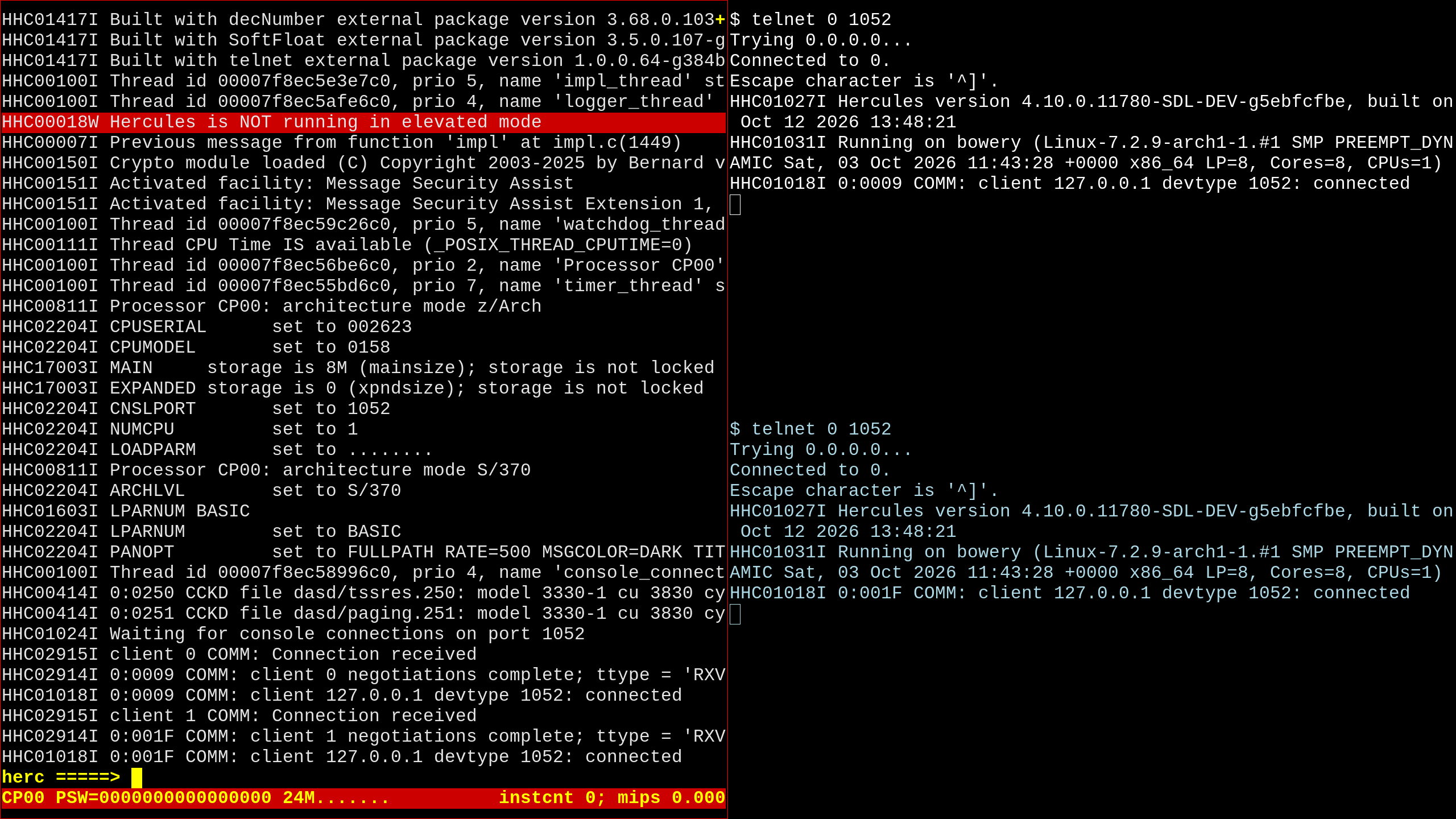 TSS/360 before IPL. Source: Rupert Lane. License: CC0.
These telnet sessions must be connected before doing the next step.
Now type ipl 250 in the Hercules console to IPL (initial program
load, ie boot the system). Press Enter in the operator console and you
will get a ? prompt.
Type ls (meaning long start) to start the loading process. Answer
the questions as shown below (<Enter> means just type the Enter key at
this point)
ENTER PHY ADDRESS OF CARD RDR OR DEFAULT = EOB.
<Enter>
ENTER ADDR OF PAGING DISK
251
PRINT MAPS? 0 1 2 3...NONE IVM RESSUP BOTH
3
ENTER CODE FOR FUNCTIONS NOT TO BE LOADED.ALL FUNCTIONS WANTED = EOB
99
QUICK START REQUESTED?  IF Y ENTER ADDR  OF PACK FOR QUICK START DATA SET--N = EOB
<Enter>
DELTA DATA SETS?  Y OR N
n
It will then ask you if the clock is correct
CURRENT CLOCK VALUE IS 12/10/26 05.16.13 IS CLOCK CORRECT?
I normally just accept this by typing y, but you can change it by
typing n and then following the prompt.
Finally the initial start up has completed and you will get a $
prompt. Type run to start the system fully, entering n to the bulk
I/O question for now, and typing reply 1,ok to the next question.
$ run
 BULKIO REQUIRED?
n
   N ACCEPTED
05:16:20        SYSOPER0 NO DRUM PATH AVAILABLE
05:16:20        TSS00001 BATCH MONITOR HAS BEEN INITIALIZED
05:16:20 R=0001 SYSOPER0 VALIDATE THE SYSTEM HARDWARE CONFIGURATION. REPLY OK WHEN DONE.
reply 1,ok
It will then print
TSS370
 STARTUP COMPLETE,USERS MAY LOGON
User logon
In the user console (the second telnet window), press Enter and type
logon tss,ibm to log on as user tss with password ibm.
The screen will now look something like the screenshot below. Note in
the Hercules window I'm showing the system panel, you can switch
between the Hercules console and panel by typing Esc. If you don't
like the colours, edit hercules.cnf in this repo and change the line
PANOPT MSGCOLOR=DARK.
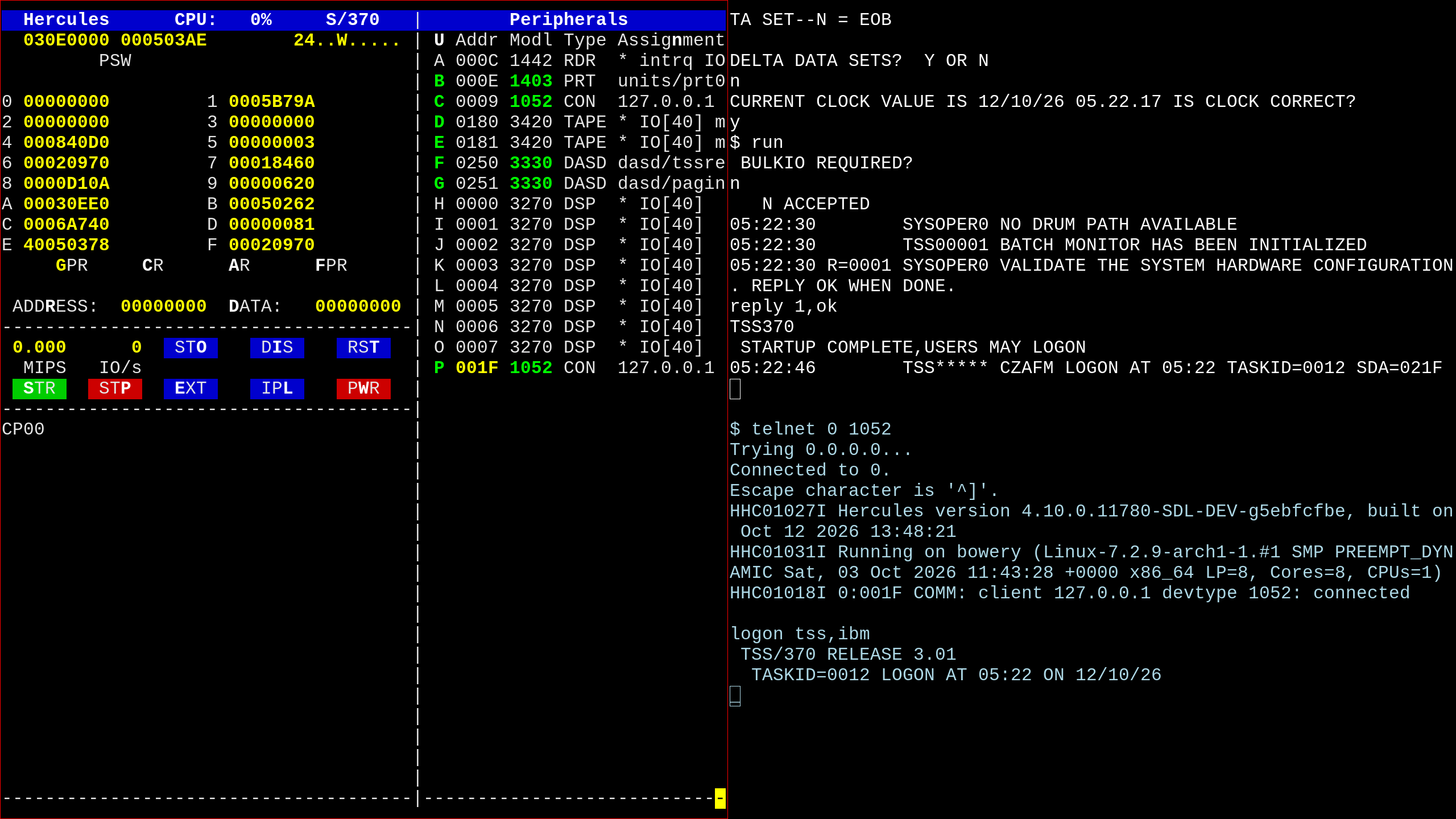 TSS/360 after IPL. Source: Rupert Lane. License: CC0.
Entering commands
The prompt is an underscore: on a a physical teletype, this would have been followed by a backspace so the first character you typed would be underlined, which is a nice way of distinguishing user and system text on the printout. The terminal emulator allows you to correct mistakes with Delete and Control-U before pressing Enter.
Commands are 1-8 letters long: for example usage will print a
summary of your resource usage so far.
Commands can take parameters, which are separated by commas and can be
specified positionally or via keywords. For example, exhibit uid
will show what users are logged on to the system.
exhibit uid
ACTIVE USER STATUS AT 09:36:38     12/17/26
USERID    TID TYPE SYSI
SYSOPER0    1 CONV  209 SYSOPER0    2 BACK    0 TSS*****   13 CONV  21F
To just show conversational users, you can set the type option.
exhibit uid,type=conv
ACTIVE USER STATUS AT 09:36:58     12/17/26
USERID    TID TYPE SYSI
SYSOPER0    1 CONV  209 TSS*****   13 CONV  21F
This could also be entered as exhibit uid,conv or even exhibit
type=conv,option1=uid
Sometimes commands will prompt you for more information. If you want
to stop the current program, enter ! as the first character of the
line and press Enter. For example below I enter the print command
without a file name and so it prompts for one; as I don't have
anything to print I type ! to exit out.
print
 ENTER DSNAME
!
There is no online help, but explain can be used sometimes to
provide more information about the last error message. Below I enter
an unknown command foo and then get more information.
foo
 CANCELLED: SYMBOL FOO      TO BE LOADED NOT FOUND
explain
 NO MODULE WAS FOUND IN ANY OF THE DEFINED JOBLIBS CONTAINING THE SYMBOL.
  THE SYMBOL WAS EITHER NOT FOUND OR WAS CONTAINED IN A MODULE WHICH IN THE
  PROCESS OF BEING LOADED,HAD ALL CONTROL SECTIONS REJECTED
Running a simple Fortran program
Let's enter and compile a simple hello world program in Fortran. Type
edit source.hworld and it will print the initial line number 100 for
this new file. Now enter the following program, using spaces not tabs.
You can use Delete to correct any mistakes on each line.
        DO 1 J=1,5
1       WRITE(6, 2)
2       FORMAT(' HELLO, WORLD!')
        STOP
        END
To exit the editor, you need to use the END command, but you need to
type an underscore first to signal this is a command rather than just
text
To compile, type ftn hworld and to execute run hworld. Your
session should look something like this:
edit source.hworld
0000100         DO 1 J=1,5
0000200 1       WRITE(6, 2)
0000300 2       FORMAT(' HELLO, WORLD!')
0000400         STOP
0000500         END
0000600 _end
ftn hworld
run hworld
HELLO, WORLD!
HELLO, WORLD!
HELLO, WORLD!
HELLO, WORLD!
HELLO, WORLD!
 TERMINATED: STOP
Looking at files
Let's take a look at our files now. Type pc? to print the catalog to
the screen, ie do a directory listing. You will see a bunch of existing
files and our source file is there
TSS*****.SOURCE.HWORLD, ACCESS: RW
(The asterisks after the user id TSS are to pad it to 8 characters).
By typing line? source.hworld you can list the contents of this file
to the terminal.
You'd expect also to see an object file as a result of the compilation, but there's no obvious candidate. In fact, the object code has been added to this library file
TSS*****.USERLIB, ACCESS: RW
TSS/360 collects object code into libraries like this and when you
type RUN to execute it, does the run time dynamic linking needed.
There's also a listing file produced by the compile which you can view
by typing line? list.hworld. But looking at the catalog we see this
strangely named file:
TSS*****.LIST.HWORLD.G0000V00, ACCESS: RW
This is a generational data group, a way of keeping several older versions
around. Compile the source again by typing ftn hworld and then
pressing Enter when it says DEFAULT TO REPLACE PREVIOUS MODULE.
Do a pc? again and you will now see two files
TSS*****.LIST.HWORLD.G0000V00,   ACCESS: RW
TSS*****.LIST.HWORLD.G0001V00,   ACCESS: RW
These files can be accessed by the full names given above, but you can
also use list.hworld(0) and list.hworld(1) to see the latest and
previous version.
As you can see, TSS/360 handles files quite differently from what we've seen on other operating systems - it even gives them a different name, calling them data sets. In a future post I will go into more detail.
Logoff
Type logoff in the user console. This will trigger a bug in the
system where the logoff accounting procedure does not run correctly.
There is a way to work around this, however. Disconnect your user
console telnet window (close the window or type Control-] and then
quit). Switch to the operator console and type run twice to clear
the error. You can now reconnect the user console and logon again if
desired.
Shutdown
To shutdown the system, switch to the operator console and type
shutdown. It will print a message saying this is completed. Now go
to the Hercules console and type quit.
Further reading
Bitsavers has a comprehensive set of manuals for TSS/360. Most of these are references, but a tutorial style guide that extends on the above can be found in Introducing TSS/360: A Primer for FORTRAN Users
Questions, corrections, comments
I welcome any questions or comments, and also especially any corrections if I have got something wrong. Please email me at rupert@timereshared.com and I will add it here and update the main text.