TOPS-10: A quick tour using simh
In this post I will show how to get TOPS-10 version 6.03 running using the simh emulator.
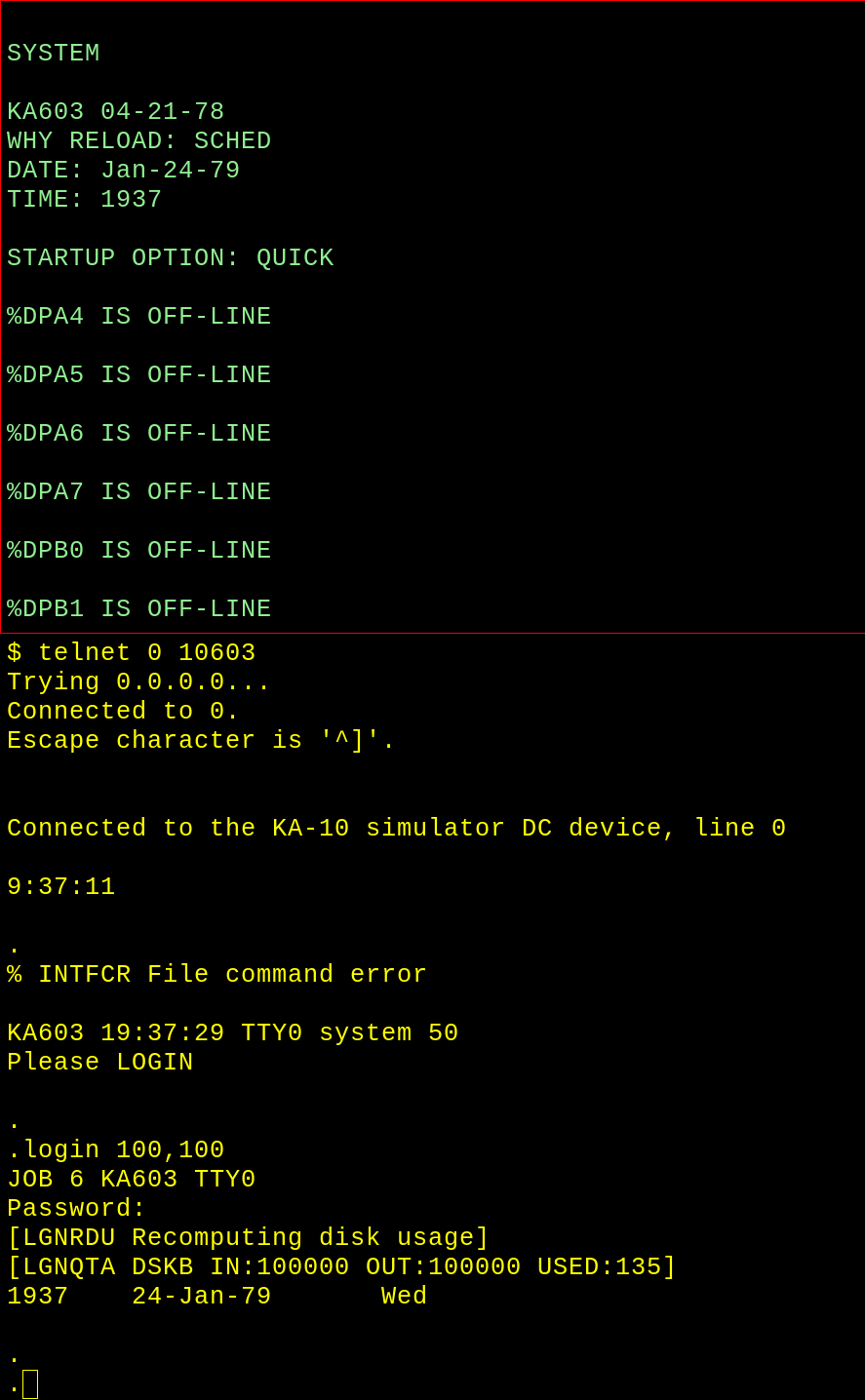 Starting up TOPS-10, with the console on top and the user login below. Source: Rupert Lane. License: CC0.
The quick start repo
I have put together a repo on Github that uses Richard Cornwell's KA PDP-10 KA simh emulator along with a ready-to-use disk image or TOPS-10 6.03 produced by the PiDP-10 project, which contains a tested install of the operating system along with many additional programs such as compilers.
To use this, you will need a Unix-like environment capable of running a shell, git, make, a C compiler, wget and unzip.
You will also need the telnet command line program or a GUI telnet
client.
First, clone the repo and cd into it
git clone https://github.com/timereshared/dec-tops-10-simh-quickstart.git
cd dec-tops-10-simh-quickstart
Then type ./build.sh. This will
- Download opensimh using git and compile the pdp10-ka emulator binary.
- Download a copy of the TOPS-10 disk images.
This will take around 2-3 minutes and will only need to be done once.
The virtual disks are stored in disks/ and take up about 310MB of
space.
Start TOPS-10
Type ./run.sh. The system will boot up and the date/time will be set
automatically using today's day/month but with the year set to 1979.
as this version of TOPS-10 is not Y2K compliant.
Sometimes the system hangs after printing %DPA7 IS OFF-LINE. In this
case, press Control-E, type q and then ./run.sh again.
If all goes well, you will see it print KA603 (time) CTY system 50.
Using a telnet client, connect to port 10603 (eg via telnet 0
10603.)
You can then login as user 100,100 and password demo1. Type login
100,100 and then enter the password at the prompt. Your screen will
look something like the image at the top of this post.
Using the TOPS-10 CLI
The command line interface has a . as its prompt. When you type
commands you can use backspace to correct mistakes, but as the system
was used on teletypes it will not rub out characters,
instead printing what has been deleted between backslashes. For
example, if I typed abcdef, realised the last three letters were
wrong, deleted them and typed xyz the screen would look like.
.ABCDEF\FED\XYZ
If you make several mistakes you can request the whole line to be retyped by pressing Control-R. Control-U can be used to delete the entire line.
Control-T will print a line of system statistics, including the current job you are running.
You can enter a command of more than a single line by typing - as
the last character on a line, pressing Enter, and continuing the
command text on the next line.
Commands can generally be abbreviated: for example instead of typing
DIRECTORY to see a list of your files, you can just type DIR.
There is an online help facility accessed by typing HELP. You can
view details of a single command by giving its full name as a parameter, eg
HELP DIRECTORY.
Creating a simple program
Let's create a simple hello world program using Fortran. We will use the SOS editor to create the source file then compile it and run it.
Type SOS HWORLD.FOR to create a new file and put us in the
editor. As this is a new file, the editor will allow you enter text
immediately. It will precede each line with a line number (which is not
a Fortran label) automatically. So the screen will look something
like this after you start SOS.
.sos hworld.for
Input: HWORLD.FOR
00100
Type the following program. Where you see ⭾ below you should press
the Tab key rather than typing spaces.
⭾	DO 1 J=1,5
1 ⭾	WRITE(5, 2)
2 ⭾	FORMAT(' HELLO, WORLD')
⭾	END
Now to exit inserting press Alt-mode - which is Escape on your
keyboard - and SOS will respond with $ and then * to show you
are back at its prompt. If you have made a mistake, you can replace a
line by typing Rnnn where nnn is the line number.
When ready, type ES at the prompt to exit with unsequenced lines (ie
don't preserve the line numbers).
The complete editing session will look like this:
.sos hworld.for
Input: HWORLD.FOR
00100		DO 1 J=1,5
00200	1	WRITE(5, 2)
00300	2	FORMAT(' HELLO, WORLD')
00400		END
00500	$
*es

[DSKB:HWORLD.FOR]
.
You can use TYPE to see the contents of the file:
.type hworld.for
	DO 1 J=1,5
1	WRITE(5, 2)
2	FORMAT(' HELLO, WORLD')
	END
Now use EXECUTE to compile, load and run the program:
.execute hworld
FORTRAN: HWORLD
MAIN.
LINK:	Loading
[LNKXCT HWORLD Execution]

HELLO, WORLD
HELLO, WORLD
HELLO, WORLD
HELLO, WORLD
HELLO, WORLD

END OF EXECUTION
CPU TIME: 0.00	ELAPSED TIME: 0.00
EXIT
You can use DIR with a wildcard to show the files that have been
created.
.DIR HWORLD.*

HWORLD	REL     1  <057>   12-Jan-79	DSKB:	[100,100]
HWORLD	FOR     1  <057>   12-Jan-79
  Total of 2 blocks in 2 files on DSKB: [100,100]
Logging off and shutting down the system
In the telnet window, type R LOGOUT to end your session.
.R LOGOUT

Job 4, User [100,100]  Logged off TTY0     1047  12-Jan-79
Saved all files (45 blocks)
Runtime 0.57 Sec
To shut down the system, switch to the simh window, press Control-E
and type do shutdown.ini.
Simulation stopped, PC: 146766 (JRST 0,146772)
sim> do shutdown.ini
:kill all

 **
BOOTS
Goodbye
$
When you want to use the system again, type ./run.sh and log in as before.
Further information
In the TOPS-10 Software Notebooks on Bitsavers, Getting Started with Decsystem-10 covers similar material.
See Richard Cornwell's TOPS-10 kit page for other versions of the operating system. The kits also contain simh scripts to build the system froms scratch, which is useful if you want to customise it further.
The PiDP-10 project's software provides an integrated system that can run TOPS-10, ITS and TOPS-20, even without a physical PiDP-10.
Questions, corrections, comments
I welcome any questions or comments, and also especially any corrections if I have got something wrong. Please email me at rupert@timereshared.com and I will add it here and update the main text.