TOPS-10: Getting data in and out
On a real PDP-10 running TOPS-10, you'd likely to have several peripherals to allow data to enter and leave the system: line printers, card punches and readers, paper tape and magnetic tape. One other alternative we've not seen before is DECtape which were magnetic tapes with a smaller form factor and a block structured, allowing random access to files. This meant they could be used as a slow substitute for hard disks, eg for user files.
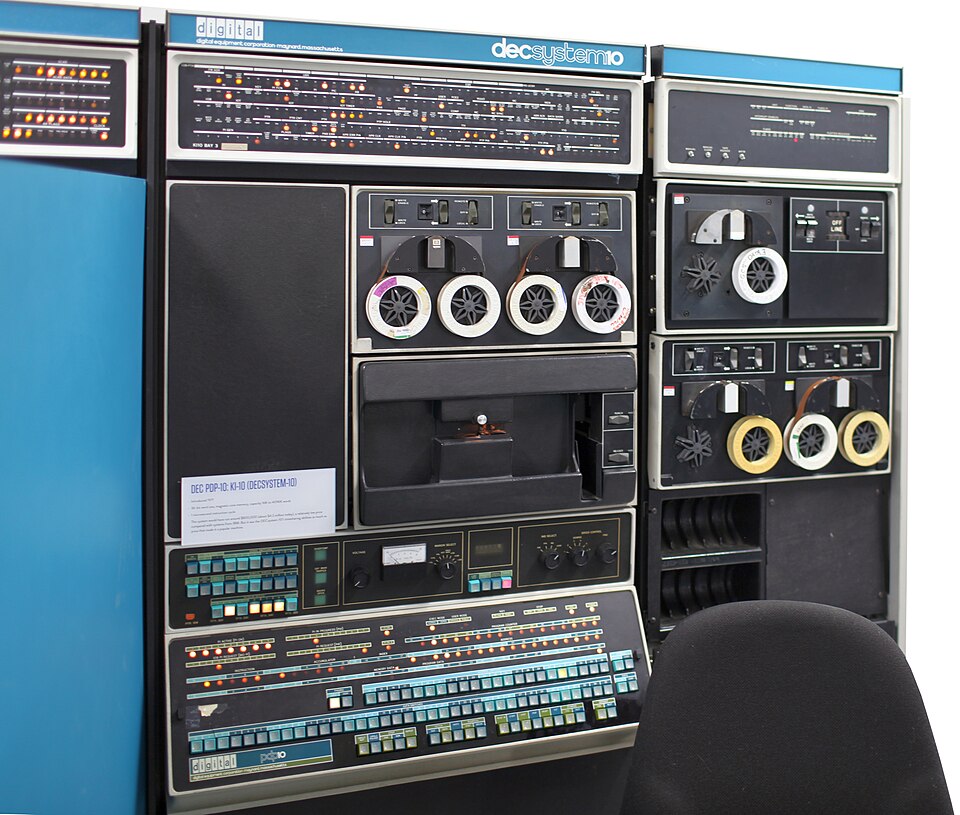 PDP-10 with several DECtapes. Source: Wikipedia/Jason Scott. License: CC0
_in_Living_Computer_Museum_(strongly_edited)_).jpg)
On an emulated system your concerns are different: you want to get data to and from your host computer. Small amounts of text can be transferred using copy/paste in your terminal, but this is not practical for large amounts - especially for pasting, as the console was expected to be a typewriter and cannot accept text that fast.
Let's look at ways to do this using emulated devices under simh.
Device access
As a large computer running time-sharing for many users, one important concern for the operating system is how to mediate access to peripheral devices. There are essentially two options on TOPS-10
Spoolers allow several people to share a device. The operating system maintains a queue of jobs entered by different users, and processes them one at a time. These spooler jobs are run under the operator's ID via a system called OPSER, which you can see running on the operator's console after you boot the system. The line printer is an example of a spooled device.
Assignable devices allow you to request sole access to a device, giving it a logical device name you can use instead of the real physical device. This is useful for magnetic tape drives, where there may be several allocated on an as-needed basis to users.
The choice of how to share devices was up to each site and can be configured in the monitor; we'll just use how it is set up on the quickstart disk images without changing these.
Printing
The line printer is a good way to get text data out of the system.
This is a spooled device available as device LPT:. To print a single
file, use the PRINT command
.print hworld.for
Total of 1 block in 1 file in LPT request
You'll see a message on the operator's console saying this is being processed.
!11:34:52(L\7)
        Job HWORLD file DSKB1 :HWORLD.FOR   [64,64] for [64,64] started
        D:HWORLD.FOR   [64,64] Done
Then look in the file units/printer.txt on the host
system to find your output. You'll see the name of the file you
requested to be printed in large letters (on a physical printer this
would allow easy identification of jobs) followed by the file's text.
You can also use the device name where a file would be normally used. For example, to print all the Fortran files in your directory:
copy lpt:=*.for
Note when using the device, the files will not be printed until your job terminates, ie you log out.
In simh, where printer output goes on the host is controlled by the
attach lpt command in the configuration file. On the quickstart, see
common.ini:
at lpt -n units/printer.txt
The -n switch will start a new file each time the system is booted.
If you'd prefer to keep the contents of the file over each session and
append to it, replace -n with -a.
Extracting files to your PC via virtual tape
If you want to extract several files from TOPS-10, here is a method using emulated tapes and the TOPS-10 backup program.
You will need to get the back10 utility by Johnny Eriksson running on
your PC. Download the file back10.tar from the linked page, untar t
an empty directory and run make to compile the binary back10.
Place this on your PATH somewhere.
Next, on the simh console, we will create a blank tape file on your PC
backup.tap and attach it to the emulated tape drive MTA1.
Press Control-E to enter simh command mode and then type the following
at and set commands, then ~c` to resume TOPS-10.
Simulation stopped, PC: 000001 (SOJG 6,1)
sim> at mta1 backup.tap
%SIM-INFO: MTA1: creating new file
%SIM-INFO: MTA1: Tape Image 'backup.tap' scanned as SIMH format
sim> set mta1 write
sim> c
Switch to your TOPS-10 login. We will assign the tape to logical name
TAP: and run BACKUP . The prompt will change to a /. We'll then
use the following BACKUP commands
tapeto select the tape drivesaveto add files - below we add all Fortran files in our home directoryunloadto finalise the tape
Press Control-C to get back to the command level. and finally deassign the logical tape name. The session will look something like this:
.assign mta1: tap:
MTA001 assigned

.r backup

/tape tap:
/save *.for
!100,100	DSKB

"Done

/unload

[MTA001: WRITE(C/H/S) = 10880/0/0]
/^C

.deassign tap:
You may get a message "Tape write locked–add write ring then type "GO"" - just type GO as suggested in this case.
On your host PC, use back10 with the -l switch to list the
contents of the tape file
$ back10 -lf backup.tap
  21-Apr-1978 11:13:59  <057>  dskb:[100,100]ftest.for
  17-Jan-1979 14:40:59  <057>  dskb:[100,100]hworld.for
Use the -x option to extract files. Here I use -R and a wildcard
to extract everything.
$ back10  -xf backup.tap  -R '.'  '*.*'
  dskb:[100,100]ftest.for
  dskb:[100,100]hworld.for
Adding the -b option will create a directory tree, ie create files
named like dskb/100,100/hworld.for.
Uploading files
To upload files from your PC to TOPS-10, we can use the same technique
bur in reverse. First, use back10 with the -c option to create a
backup tape file. Here we create the tape transfer.tap containing a
single file test.for. Note we provide destination disk and user
information using the -U switch which will help simplify things when
we extract the files later.
$ back10 -cf transfer.tap -U dskb:100,100 tesr.for
Switch back to the simh console, press Control-E and attach the new file.
sim> at mta1 transfer.tap
%SIM-INFO: MTA1: Tape Image 'transfer.tap' scanned as SIMH format
sim> c
Go to your TOPS-10 login and use BACKUP with the RESTORE command
to get all the files in the archive:
assign mta1: tap:

.r backup

/tape tap:
/restore *.*
!100,100	DSKB

"Done

/^C
There are several other BACKUP commands available at the / prompt.
Type HELP for more information. One is PRINT, which will print a
listing of the tape on the line printer
Other methods
One potential way to interchange files is Kermit, which allows you to send and receive files interactively over your terminal connection. There is a version on the TOPS-10 v6.03 disk images that we are using, but it only works for download of files from TOPS-10 to your local machine, uploads do not work. A thread on the PiDP-10 group indicates that there is a newer version of Kermit that does work, but it is only compatible with TOPS-10 v7.
Further information
See the Operating Systems Command Manual on Bitsavers for full
documentation of TOPS-10 commands such as PRINT and BACKUP.
Questions, corrections, comments
I welcome any questions or comments, and also especially any corrections if I have got something wrong. Please email me at rupert@timereshared.com and I will add it here and update the main text.
A draft version of this article was publushed in error on 8-Feb-2026.